

Project 025 - WinGPIB - GPIB Windows Software
- Details
- Published: Sunday, 25 November 2018
- Hits: 38606
WinGPIB
App rebranded 2nd Jan. 2022 - UK/USA Trademark.
 This app provides reliable Windows GPIB functionality to many brands and types of test instruments, aka HPIB, GPIB, or IEEE-488 Instrument Control.
WinGPIB is strictly for non-commercial, non-business use only, please see the Licence & Usage statement at the foot of this page.
Written in VB.NET using Visual Studio 2022 and using Pawel Wzietek's awesome GPIB library code (.DLL Multi-threaded GPIB communication).
The app can interface using various different types of GPIB interfaces, and can run two devices at the same time.
Pawel's GitHub page: https://github.com/pawel-wzietek/IODevices
DISCUSS:
You can discuss WinGPIB over on the EEVBlog forum here .
I/O DEVICE PROTOCOL COMPATIBILITY:
99% of instruments with a GPIB interace will work with this app because it is extremely flexible. The following protocols can be selected:
- VISA (Generic interface [GPIB,USB etc.] via Visa)
- GPIB:ADlink (ADlink boards)
- GPIB-488 (gpib488.dll - Some Keithley, MCC and older NI boards)
- COM port (Generic serial)
- Prologix Serial
- Prologix Ethernet (TCP)
- NI-GPIB-232CT-A (NI serial)
Confirmed adaptors:
These are the ones I have confirmed, or have been confirmed to me.
- Agilent E5810A (VISA)
- Agilent 82357B USB (VISA)
- Agilent 82350-66511 PCI-GPIB card (VISA)
- Prologix GPIB-Ethernet (Prologix Ethernet TCP)
- AR488 Arduino GPIB (Prologix serial)
- Kofen's PoE Ethernet (Prologix Ethernet TCP)
- National Instruments NI-GPIB-232CT-A (NI-GPIB-232CT-A)
- XYPHRO UsbGpib (VISA)
TEMPERATURE/HUMIDITY SENSOR COMPATIBILITY:
Whilst also being able to connect to two GPIB devices at the same time, WinGPIB also allows interfacing to a temperature & humidity sensor which can logged alongside the GPIB data.
- USB-TnH SHT10 V2.00 & USB-TnH SHT30 (Usb serial comms). – https://www.dogratian.com
- Adafruit MCCP2221A/SHT40 as follows:
Adafruit MCP2221A Breakout - General Purpose USB to GPIO ADC I2C - Stemma QT / Qwiic - http://adafru.it/4471
Adafruit Sensirion SHT40 Temperature & Humidity Sensor - STEMMA QT / Qwiic - http://adafru.it/4885
STEMMA QT / Qwiic JST SH 4-pin Cable - 100mm Long - http://adafru.it/4210 - User based protocol (partial) - Handy if you have your own home grown protocol etc.
OS TESTED:
Win10
Win11
DOWNLOADS:
See here - https://www.ianjohnston.com/WinGPIB/
Note: You can also check for new versions and download the latest from within the app (from V3.284 onwards), see SETTINGS tab in the app.
Note: Version 3.143 and over requires MCP2221DLL-M-dotNet4.dll which is available here - https://github.com/Ian-Johnston/WinGPIBadditionalinfo/tree/main/WinGPIBadditionalinfo if you are updating.
Extra: If you want access to previous versions or the latest (possibly not released yet) installation .msi files then download them from my GIT here:
https://github.com/Ian-Johnston/WinGPIBadditionalinfo/tree/main/WinGPIBadditionalinfo/WinGPIB-AnyCPU_All-SetupFiles
[all files scanned with BitDefender Antivirus prior to upload]
SOURCE CODE:
This app may be used and distributed freely for strictly non-commercial, non-business purposes only. If you wish to use it within your business then contact or PM me.
The source code is available for download from my GIT (you need all 3 repositories):
WinGPIBproj - Visual Studio project (the main GUI).
IODevices - Visual Studio project (the DLL required by the main app).
WinGPIBadditionalinfo - A compilation of files, datasheets, sample data, utilities, 3rd party DLL's & drivers etc.
https://github.com/Ian-Johnston?tab=repositories
INSTALLATION INSTRUCTIONS:
Fresh Installation of WinGPIB:
First, make sure you have the Keysight IO Libraries loaded, running and configured. Then,
1. Unzip and run the .msi installer - WinGPIB_V#####.zip
2. The program is installed at: C:\Program Files (x86)\IanJ\WinGPIB\WinGPIB.exe
3. All user data resides in C:\Users\[username]\Documents\WinGPIBdata
4. A desktop shortcut is created to run the app.
Updating WinGPIB app:
1. Install using the same .msi installer as above. It will not overwrite the files in your data folder, C:\Users\[username]\Documents\WinGPIBdata
Note: See post #766 before upgrading if you are on V3.177 or earlier.
Moving your WinGPIB profiles to a new PC:
V3.178 onwards:
1. Use the EXPORT PROFILES button to save all your profiles/settings data to \WinGPIBdata\ProfilesData.dat.
2. Copy the .dat file to your new PC \WinGPIBdata folder.
3. Once you have installed WinGPIB, use the IMPORT PROFILES button to import all your profiles/settings data.
4. Restart WinGPIB.
Prior to V3.178:
1. On your old PC (I'm using Win10) go to: C:\Users\YOURUSERNAME\AppData\Local\Microsoft\WinGPIB.exe_Url_somegreatlonglistoflettersnumbers\1.0.0.0\ and in there is a file called user.config
2. Copy that file out and put it in the similarly named folder in your new PC. The large folder name will be different.
Installation Notes:
1. If you accidentally delete your GPIBchannels.txt or base Log.csv file there are original copies in the program folder you can copy over to C:\Users\[username]\Documents\WinGPIBdata.
2. When upgrading you may lose the contents of your profiles so Export them first.
3. WinGPIB does not use OneDrive for it's data storage.
4. If you get an error on running the program that a Log.csv file or its path doesn't exist, then manually create the exact path and drop a copy of Log.csv in that folder. Restart WinGPIB.
5. Version 3.143 and over requires MCP2221DLL-M-dotNet4.dll available here - https://github.com/Ian-Johnston/WinGPIBadditionalinfo/tree/main/WinGPIBadditionalinfo
Note that depending on your Windows install you may need to install Microsoft Visual C++ 2010 Service Pack 1 Redistributable Package in order for the MCP2221DLL to work properly. Available here:-
https://www.microsoft.com/en-gb/download/details.aspx?id=26999 or https://www.techpowerup.com/download/visual-c-redistributable-runtime-package-all-in-one/
INSTRUCTIONS / NOTES FOR USE (basic only):
Assumes that you have loaded the current version of Keysight IO Libraries Suite and have it configured.
DEVICES:
Set up your NAME and ADDRESS of the device(s) you want to connect to, and pick the INTERFACE type (I have tested Visa only).
The defaults shown when you install are my own as an example.
Hit the CREATE DEVICE button (you choose). A pop-up box will appear that lists the connected device. This box will remain visible at all times and will let you see the commands being sent and any queued commands.
You can effectively batch commands using the PRE RUN, AT RUN and AT STOP boxes and using the RUN/STOP button at the bottom.
PRE RUN commands are used to set up your device.
AT RUN command is the command that is repeated at the SAMPLE RATE.
Command types are as follows:
SINGLE COMMANDS:
Enter single commands in the COMMAND boxes and hit QUERY and you'll get a RESPONSE back.
Types of commands as follows:-
Query Blocking commands are immediately executed/sent. They are immediately executed on the calling thread (usually GUI thread), this method waits until it gets response from the interface.
Query Async commands are queued. Queries are queued and the queue is processed on a different thread (producer-consumer model). The call appends the query to the queue and returns immediately.
Send Async commands queued. These types of commands do NOT expect a reply.
BATCH/LOOPING COMMANDS:
PRE RUN - Initialize your device with a list of SEND ASYNC type commands.
AT RUN - A single QUERY ASYNC type command.
AT STOP - A list of SEND ASYNC type commands you may wish to send when you hit STOP.
INTERRUPT COMMANDS:
You can specify an Async (no reply) command to be sent periodically, such as ACAL DCV when you are logging etc.
Duration in secs = How long you need that command to be active for, i.e. ACAL DCV on a 3458 may take 60secs.
Period in mins = How often do you want that command sent, i.e. every 120mins.
IO DEVICES POP-UP:
When the CREATE DEVICE buttons are pressed a pop-up box will appear that lists the connected device(s).
This box will remain visible at all times and will let you see the commands being sent and any queued commands.
Note that you can close this window without any effect on the app. You can use the button "Show Device List" to show it again if needed.
COMMAND LINE INTERFACE:
After connecting to your device(s) use the command line interface to send and receive data from your device(s).
TEMPERATURE/HUMIDITY:
A variety of temperature & humidity sensors are compatible with WinGPIB, including an option to add your own protocol.
DATA LOG / CSV:
For CSV generation, per the defaults, set up your filename and path to where you want the CSV to be saved. At the moment there is no file generated if it doesn't exist so make sure you have an empty .CSV text file at the path specified.
The check box ENABLE CSV will start saving data to the .CSV file.
The EXPORT CSV file will copy the active .CSV file to the same folder and append the current date & time as the filename.
EXPLORER will launch Windows Explorer and point to the path folder.
You can clear the current CSV file with the RESET CSV button, there's a check box next to it which must be set before the reset will work.
ENABLE LOG check box will activate the log file display window.
E NOTATION TO DECIMAL check box will convert ########E-02 to the decimal equivalent. This is for the CSV and as well as the log window.
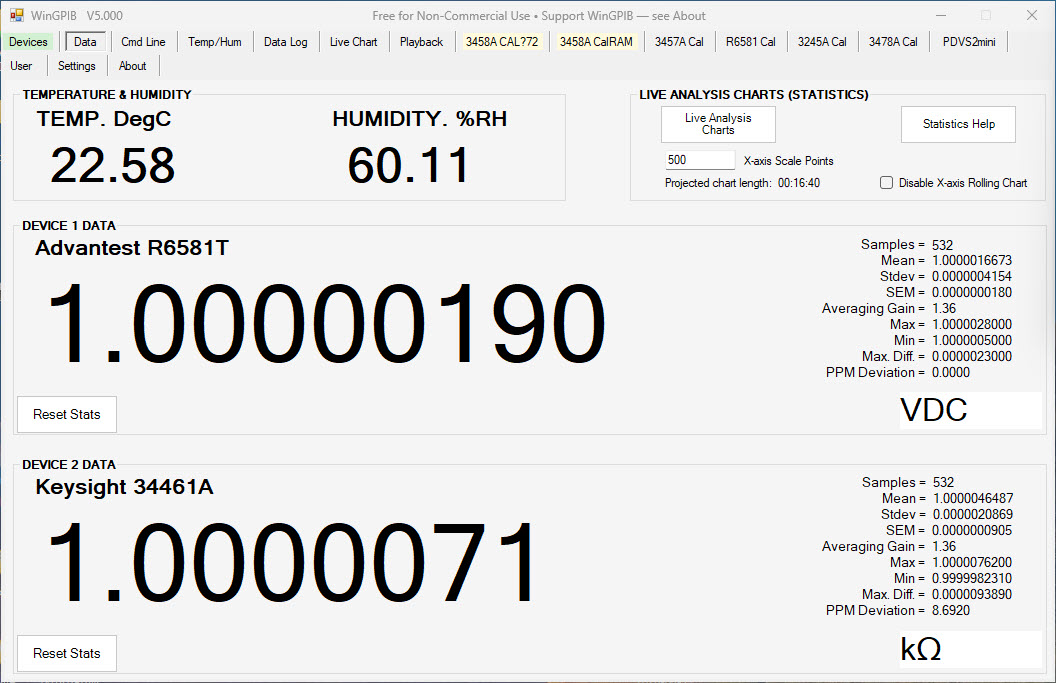
LIVE STATISTICS, including Mean, Min, Max, Max Diff, PPM Deviation, Standard Deviation (STDEV), Standard Error of the Mean (SEM) and Averaging Gain.
LIVE CHART:
Enable either or both device charts via the check boxes.
With the boxes un-checked you can hit the CLEAR CHART to reset the chart windows and remove the data.
You can change the resolution of the chart with the X-AXIS SCALE POINTS entry. Once the chart display reaches the set number of data points on it the chart will start to scroll off to the left as new data appears at the right.
The range of the Y-axis is adjustable via the SCALE MIN AND SCALE MAX entries. You can manually set them or hit AUTO SCALE and the chart will look at the existing trace and from its highest and lowest position will centre and scale the chart.
The UP and DN buttons allow the current set scale to be adjusted in 10% steps.
LIVE ANALYSIS CHART:
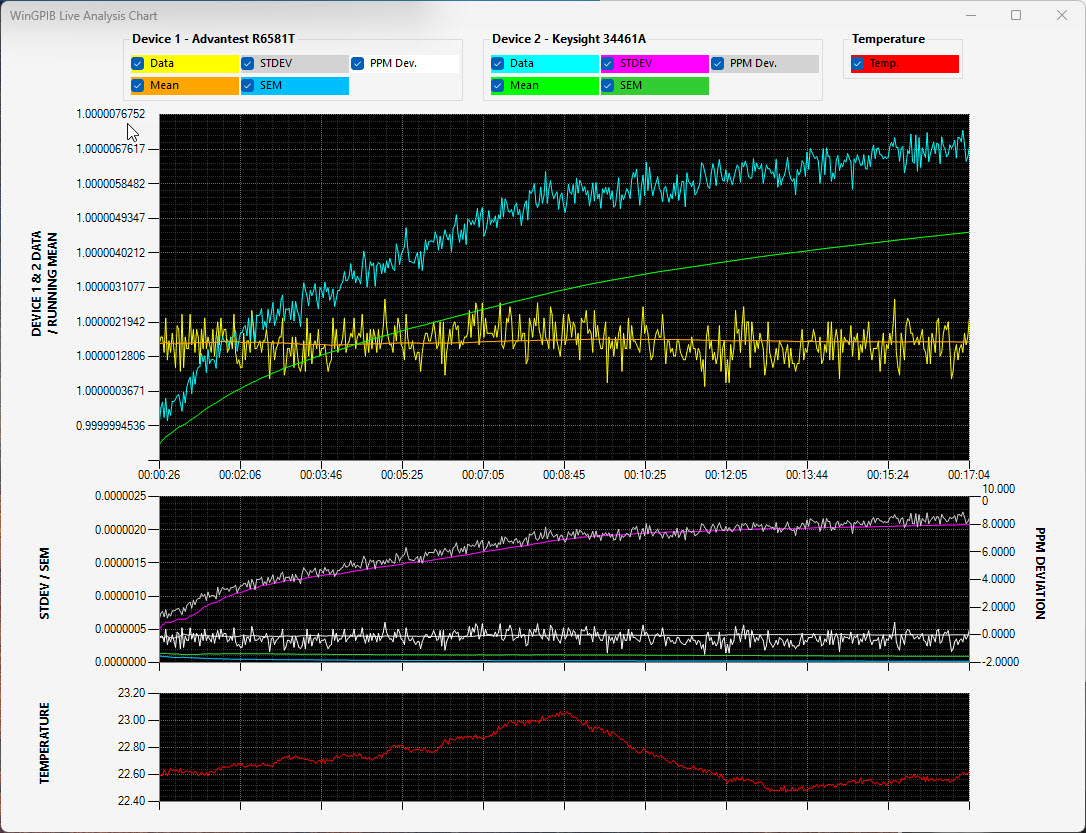
Shows the raw readings from Device 1 and Device 2 with running statistics: Samples (N), Mean, Max/Min, STDEV, SEM and Averaging Gain, plus temperature when enabled.
Tick ENABLE STATISTICS for each device before pressing Run. The chart doesn't need the Live Chart running and isn't affected by its rolling average. RESET STAT restarts the statistics from zero.
STDEV shows the scatter of the readings and levels off; SEM shows how well the average is known and keeps falling as more readings are collected. A rising STDEV points to drift or extra noise.
Display options: ANTI-ALIASING, FAST RENDERING, SMOOTH LINES and SHORT-TERM MEAN.
The statistics are also written to the Data Log and CSV.
PLAYBACK CHART:
For offline display and analysis of the .CSV files WinGPIB generates. Press LOAD .CSV FILE and every device found in the file (up to two) is listed with its own controls. The user selects which device's traces to display, and can zoom in/out and scroll back and forward through the whole run. The first 3 metadata lines of the CSV are shown beside the load button and can be edited and saved back to the file with SAVE META.
TRACES AND DISPLAY: Each device has checkboxes for its Data, Mean, Short Term Mean, STDEV, SEM, Max Diff. and PPM Deviation traces. The statistics traces appear on a second chart underneath that follows the main chart's zoom. Temperature and humidity are shown on their own scales. Each device has its own Avg (rolling average) box, Max-Min and RMS Noise read-outs, and a Line/Point display switch, and the Y-axis and Temp/Hum scales can be set by hand or with AUTOSCALE. Light Mode switches to a white background, and the window layout can be saved with SAVE SETTINGS.
NAVIGATION: Drag to pan, scroll wheel or right-drag to zoom (Shift = Y only, Ctrl = X only), middle-drag to box zoom, and ZOOM ALL to fit the whole run. From the keyboard, Left/Right pan, + and - zoom and Home gives the full view. The ZOOM OVERVIEW window shows the whole run with a draggable rectangle for the section being viewed: drag it to pan, drag its edges to zoom. Double-click two points to measure the difference between them, hover a trace for the value at that point, and right-click for a menu of the tools below plus Save Image.
ANALYSIS TOOLS:
REGIONAL STATS - a draggable, resizable band that gives the mean, STDEV, min, max, peak-to-peak and drift of any section you choose.
NOISE BAND - a rolling STDEV band around each trace, showing where the noise changes.
TREND LINE - a straight-line fit with the drift in units per hour and ppm per hour.
TEMPCO CURVE - reading against temperature, with the tempco in ppm/DegC and how much of the variation the temperature explains.
PPM DEVIATION / PPM/DEGC - measured from a baseline you choose (the first reading, a typed value, or any point you click with SET PPM BASELINE).
HISTOGRAM OF READINGS - a pop-up showing how the readings are distributed against a normal curve, with skew, kurtosis, distinct values and the meter's resolution.
ALLAN DEVIATION - a pop-up chart of ADEV (overlapping or not) and MDEV for each device, showing how the noise changes with averaging time. Both pop-ups follow the Regional Stats band when it is showing.
EXPORT: EXPORT RESULTS saves every statistic and analysis figure to a text file. EXPORT REPORT analyses the whole CSV and writes a single HTML report with key findings in plain language, statistics, drift, tempco, Allan deviation, spikes, level shifts and gaps, regular cycles, settling time, and a comparison of the two devices.
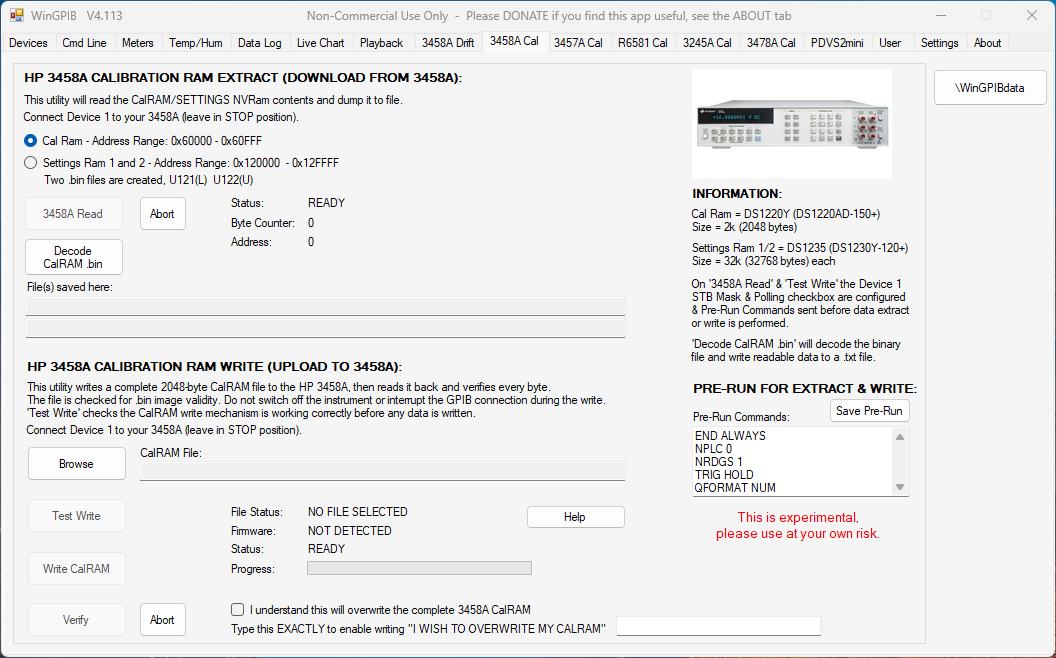
HP3458A DMM CALIBRATION RAM EXTRACT & WRITE:
Utility to extract the battery backed up (DS1220Y IC) cal ram on the 3458A DMM down to a .bin file.
Utility to extract the battery backed up (DS1235Y ICs) settings ram (both) on the 3458A DMM down to a .bin file.
Utility to decode a 3458A DMM .bin file and extract calibration data/info.
Utility to upload 3458A CalRAM .bin to the meter.
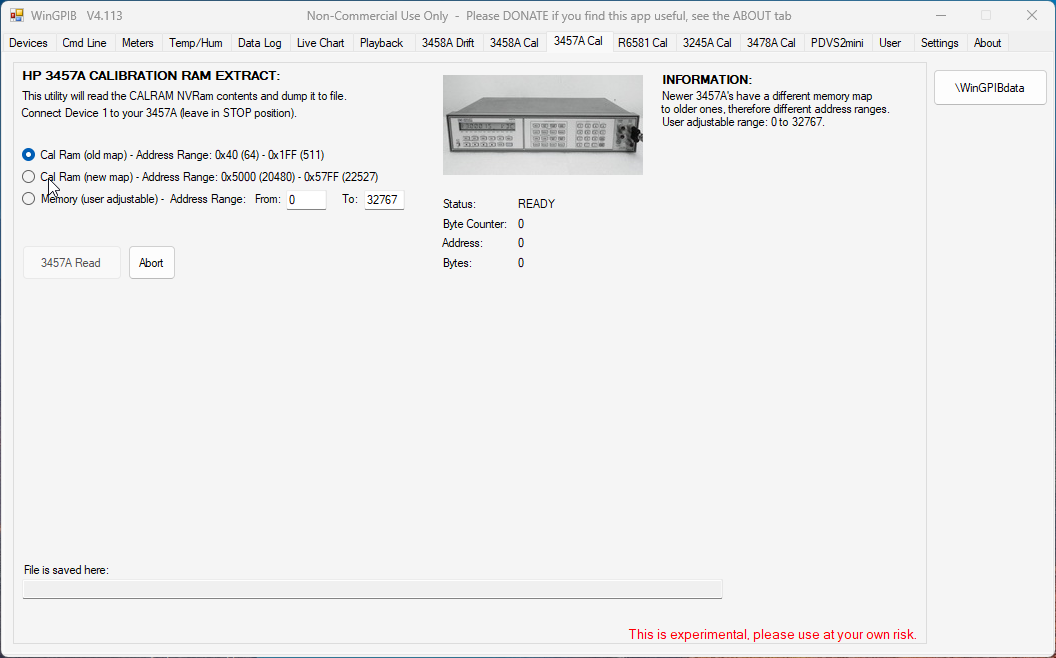
HP3457A DMM CALIBRATION RAM EXTRACT:
Utility to extract the battery backed up cal ram (2 versions) on the 3457A down to a .bin file.
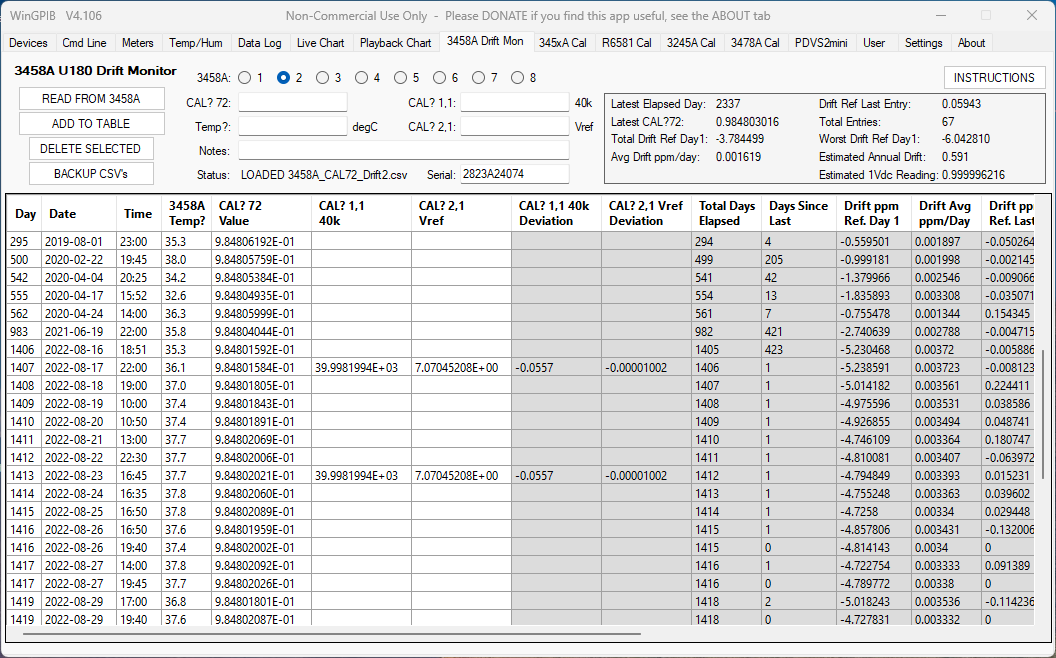
HP3458A DMM U180 DRIFT MONITOR:
Retrieve CAL? 72 and TEMP? and other data from the 3458A via GPIB and add it easily to a table where PPM drift is automatically calculated and displayed.
Up to 8off 3458's can be individually monitored.
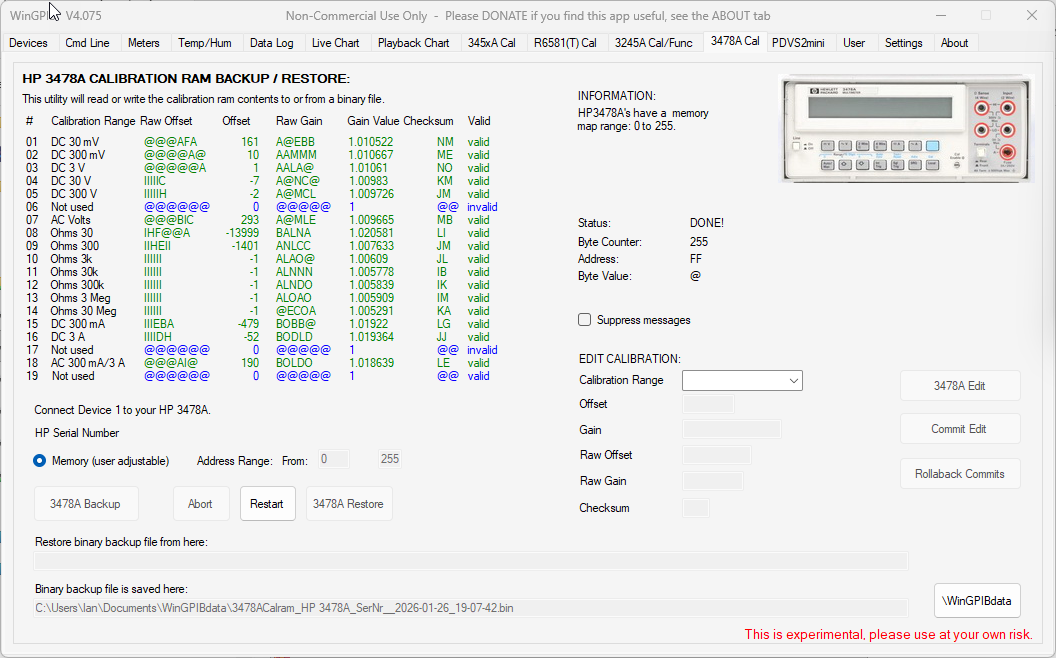
HP3478A DMM CALIBRATION RAM BACKUP / RESTORE:
Utility to a extract/backup & restore HP3478A DMM calibration data down to a .bin file & upload from .bin back to the DMM.
ADVANTEST/ADCMT R6581(T) CALIBRATION CONSTANTS DOWNLOAD/UPLOAD:
Utility to download or upload the regular calibration constants from the meter to a JSON file.
HP 3245A UNIVERSAL SOURCE CALIBRATION:
Utility to automate the full calibration (DCV & DCI) of an HP 3245A by using a 3458A, 34461A/34465A/34470A or R6581(T).
USER:
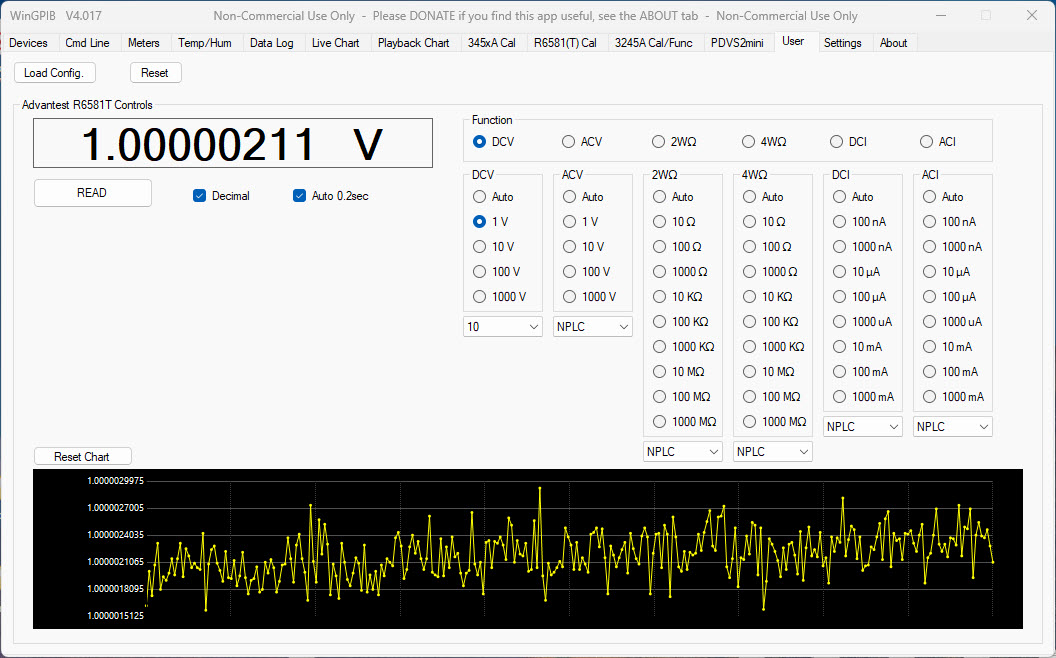
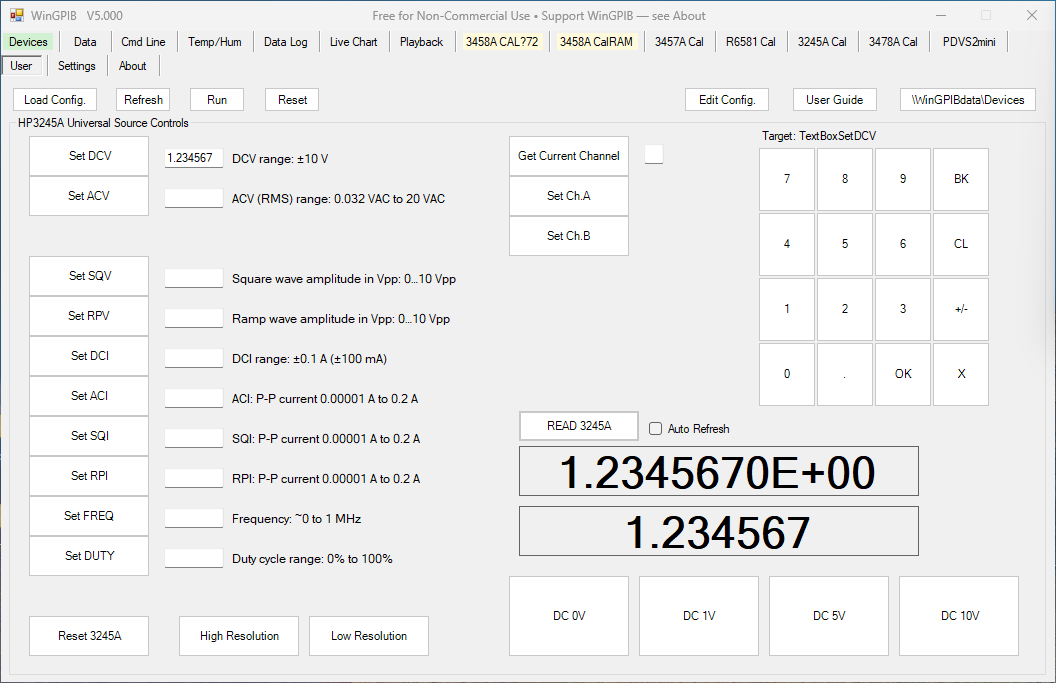
Users can define their own controls via a config text file which defines the buttons, textboxes etc. - See my article here - https://www.ianjohnston.com/index.php/articles/wingpib-user
User can write their own LUA scripts and run them via the config file.
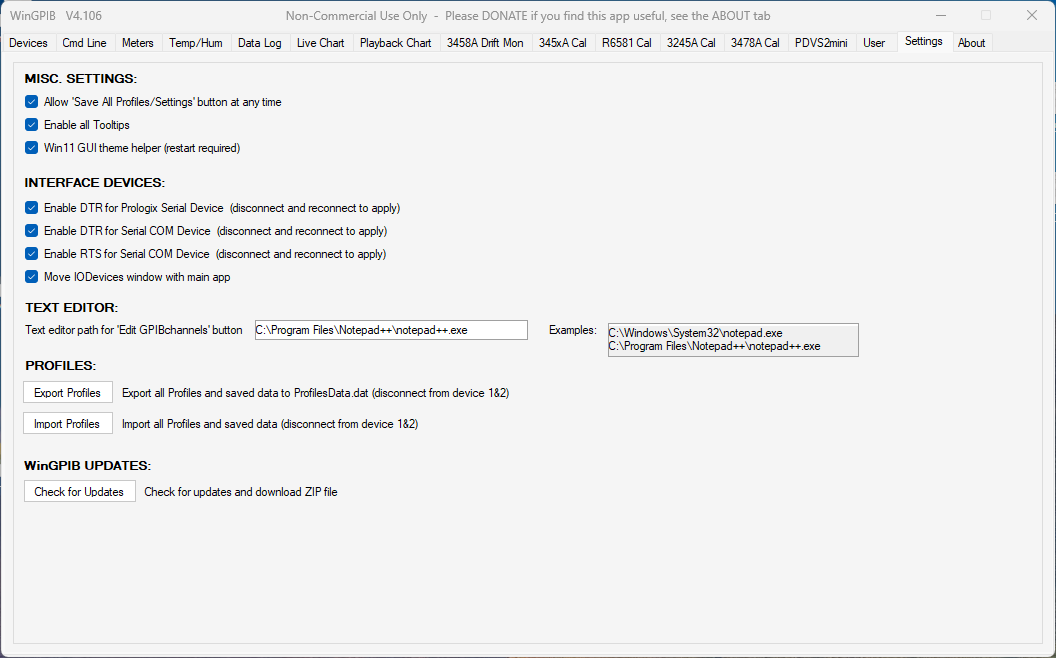
SETTINGS:
Export and Import profiles.
Misc. settings.
Interface devices settings.
Configure test editor.
Check for updates.
INTERFACING INFORMATION:
E5810A AGILENT LAN/GPIB GATEWAY CONFIG:
The E5810 is a popular LAN gateway, here's some tips on installation and getting it configured:
1. Power up E5810A and make sure it gets an IP assigned (DHCP), i.e. 192.168.1.175
2. Go to http://192.168.1.175 and "Find & Query Instruments". Make sure you can communicate with your device.
3. Go to Keysight Connection Expert and ADD Remote GPIB Interface. Change SICL Interface ID to the one that finds the IP of the E5810A. Hit OK.
4. Now a device will be listed on the "My Instruments" panel. The GPIB address will be displayed i.e. GPIB1::22:INSTR
TERMINATORS:
CR = carriage return (original meaning: moves to column zero without advancing paper).
LF = line feed (original meaning: advances paper without returning to column zero).
CRLF = does both the above
\r = CR = 0x0D = 13
\n = LF = 0x0A = 10 = newline
COMMON & NOT SO COMMON ISSUES:
ISSUE 1:
MAV not set errors:
Example: "Poll timeout: MAV not set, status byte=4"
Check your device manual to see where the MAV is coded in the status byte and set the MAV mask accordingly.
The standard value is 16 and is set by default in WinGPIB.
If it still doesn't work the only option is to disable polling altogether although you then might experience delays if you have more than one device connected via GPIB.
Also, if this is happening with large NPLC settings or other such time hungry commands then try increasing the Timeout (ms) to 10000 or 15000.
This issue can also happen if your GPIB commands are incorrect (spelling, syntax etc).
ISSUE 2:
Can connect to my device but get syntax errors, no command is actioned:
I have found a dodgy GPIB cable/connector can cause this.
ISSUE 3:
The main WinGPIB.exe is sometimes flagged up & quarantined by Windows anti-virus scans. Three Four times now it's been flagged as containing a virus and three four times now I have sent it in and it's been confirmed as a false positive. Twice by BitDefender, and once twice by Microsoft Defender. If it happens to you then please let me know and I will contact the anti-virus company involved.
ISSUE 4:
The \WinGPIBdata button to access C:\Users\[UserName]\Documents\WinGPIBdata seems to pick up a different folder to the folder that the CSV's are saved to, i.e. one is under a \OneDrive folder.
This is not a WinGPIB issue, it's due to a misconfiguration of your Win10/11 My Documents folder. Fix the Personal entry here and remove \OneDrive:
HKEY_CURRENT_USER\Software\Microsoft\Windows\CurrentVersion\Explorer\User Shell Folders
HKEY_CURRENT_USER\Software\Microsoft\Windows\CurrentVersion\Explorer\Shell Folders
ISSUE 5:
Possible VISA32.DLL Issues:
If you have Keysight IO Libraries loaded and you can communicate with your device using it's GPIB address via the Connection Expert but get an error (Visa error BFFF009E) using WinGPIB and you've tried everything, then:
Go to C:\Windows\SysWOW64
Rename Visa32.dll to Visa32_old.dll
Rename visa32.Agilent Technologies - Keysight Technologies.dll to Visa32.dll
Reason: Windows updates and updates to other programs on your PC can often replace this .DLL with their own and breaks WinGPIB Visa functionality!
SCREENSHOTS:
These are not necessarily the latest screenshots as I don't always keep them all up-to-date.
They are also reduced in size for this webpage. Click any screenshot to view it full size:
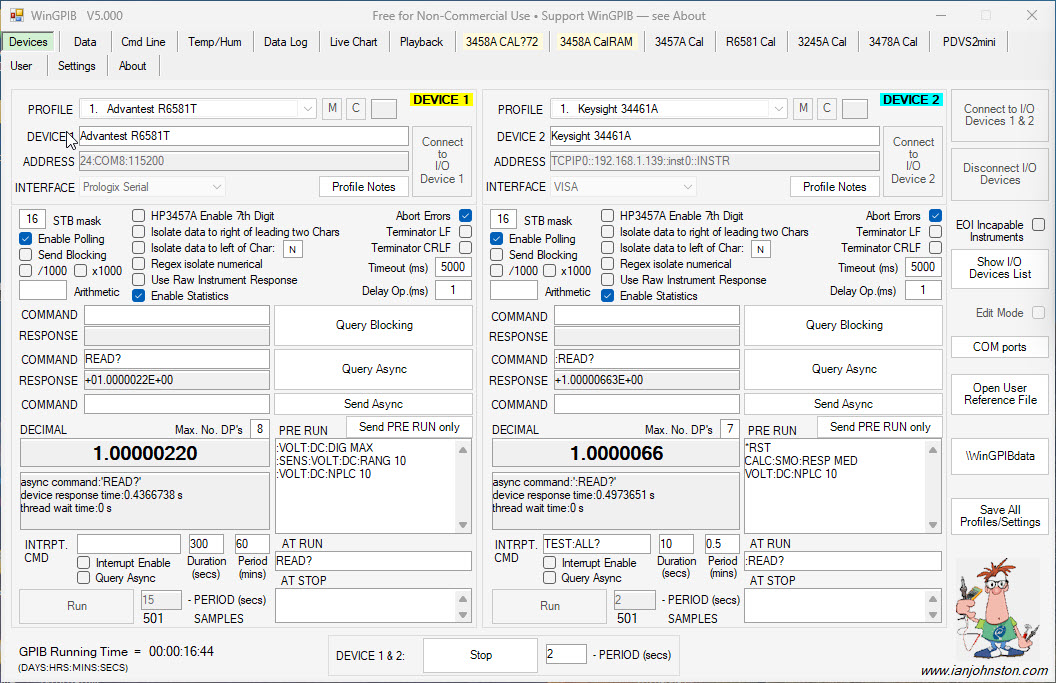
Main WinGPIB Interface - DEVICES
Temperature / Humidity Sensors

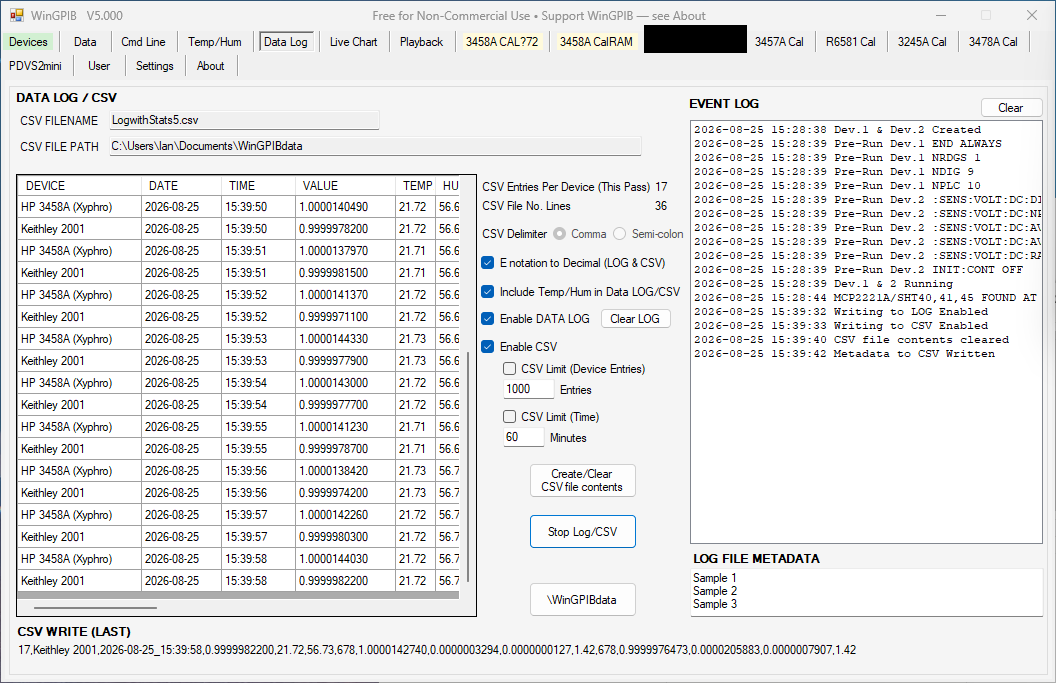
Data Log / CSV / Event Log
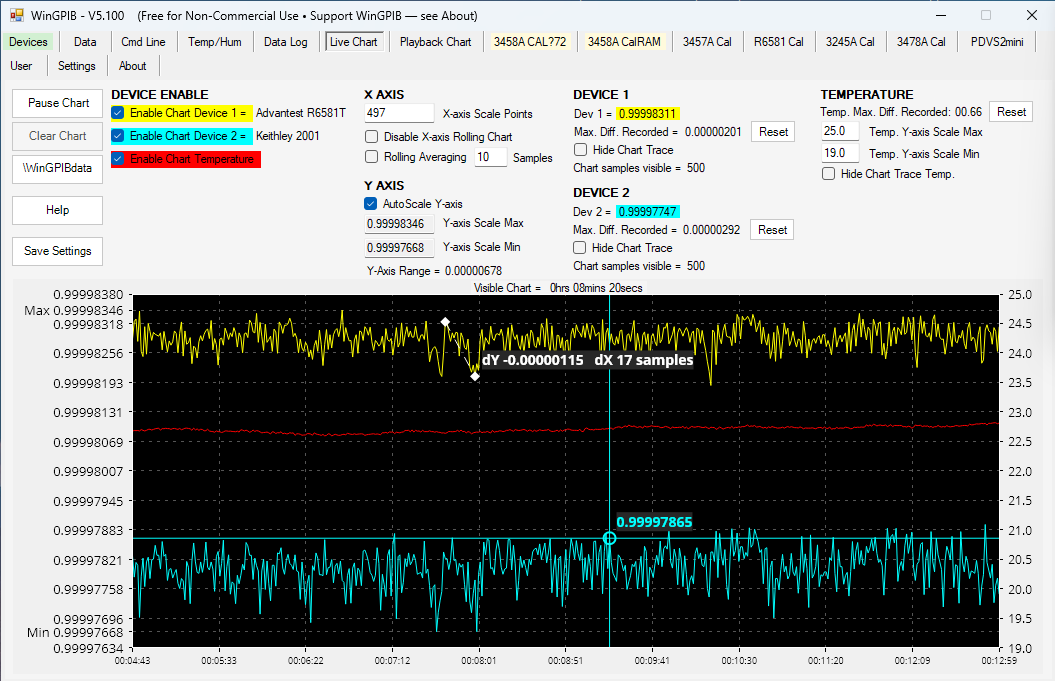
Live Chart
PDVS2mini

HP3457A Calibration Utility
HP3458A Calibration Utility
HP3458A U180 Drift Monitor
Advantest / ADCMT R6581 Calibration Utility

HP3245A Universal Source Calibration Utility

HP3478A Calibration Utility
Data / Statistics
Live Analysis Chart
Command Line Interface

Settings
User Controls - R6581T example
User Controls - HP3245A example
About / Donating
Playback Chart 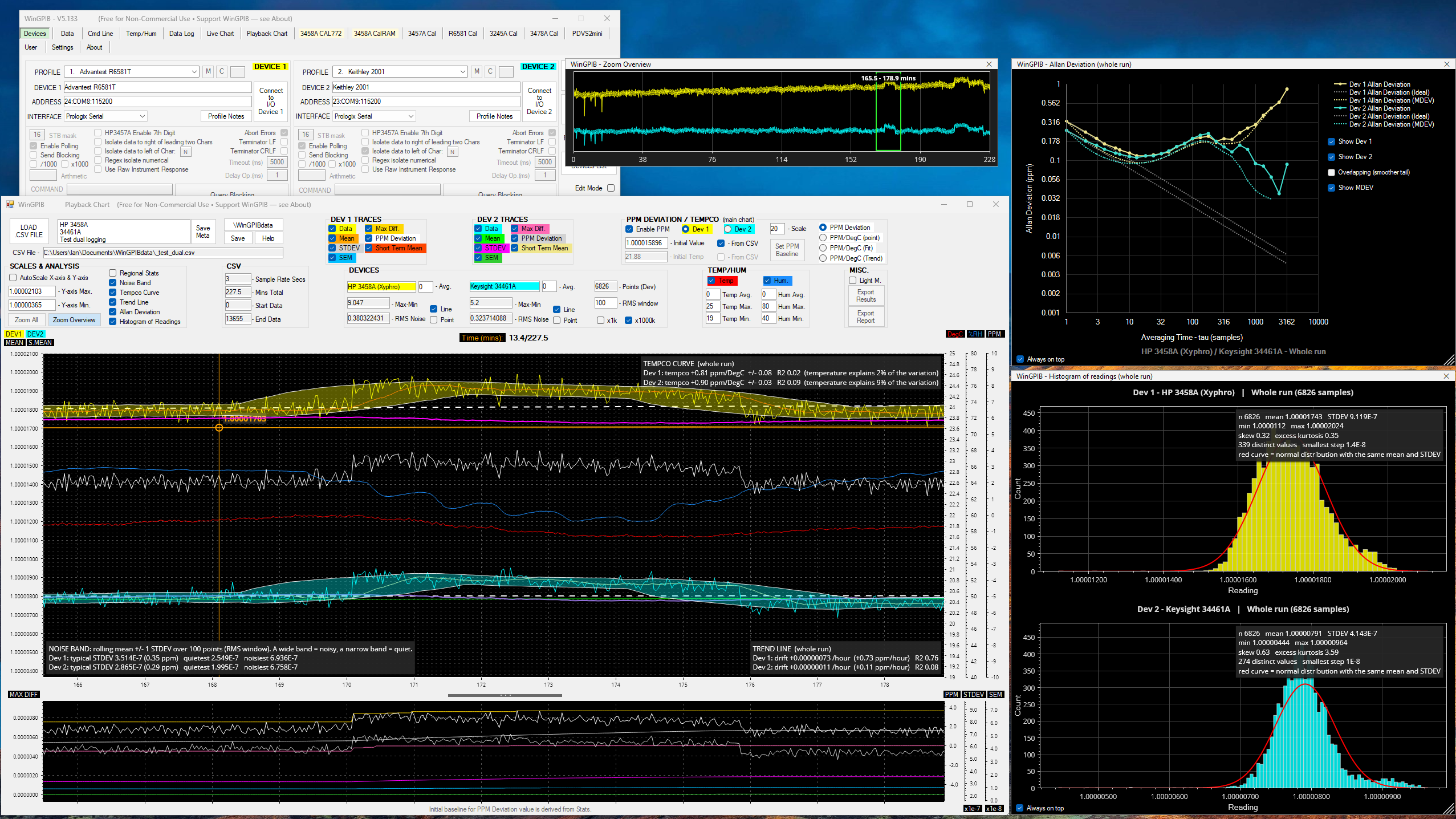
I/O Error Handling Example
Note: This example error I generated by switching off the 34461A whilst it was logging data!

I/O Devices Pop-up

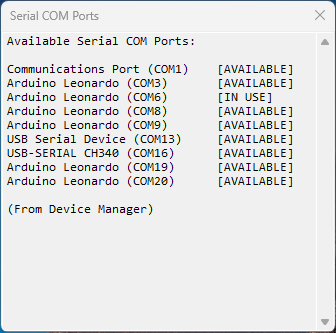
Available COM Ports
See the available COM ports on your PC (data retrieved from Windows Device Manager):
SUPPORTING WinGPIB:
Hundreds, if not thousands of hours have gone into making WinGPIB what it is today.
If you find the program useful, please consider donating (contact me).
Your support helps me spend more time developing and extending WinGPIB, and also helps fund the purchase of faulty test equipment for repair on my YouTube channel.
LICENCE & USAGE:
WinGPIB is provided free of charge for personal, non-commercial use only.
The WinGPIB source code is made publicly available and may be used, modified and redistributed for non-commercial purposes only.
Neither WinGPIB nor its source code, in whole or in part, may be used for commercial purposes without a separate commercial licence from the author.
This includes use within businesses and organisations.
Please contact the author to discuss commercial licensing arrangements.
DISCLAIMER & LIMITATION OF LIABILITY:
WinGPIB and its source code are provided "as is", without warranty of any kind, express or implied. Use of this software and source code is entirely at the user's own risk.
To the fullest extent permitted by law, the author shall not be liable for any loss, damage, damage to connected equipment, data loss, loss of use, loss of profits, or other direct, indirect, incidental or consequential loss arising from the installation, modification or use of, or inability to use, this software or source code.
