

Article 004 - SKY-Q Main box and Mini-box connection woes
- Details
- Published: Tuesday, 17 March 2026
- Hits: 3564
Sky Q – What It Is, and Why It Causes So Many Network Problems
I’ve had Sky Q for many years as my home satellite TV system. On the surface, it’s a modern replacement for older Sky+ boxes, offering multi-room viewing, recording, and on-demand streaming.
But beneath that simple description lies something far more complicated — and that’s where the problems begin. I've put together the following article based on years of playng with the problem, opening up the boxes for a good look and some theory.
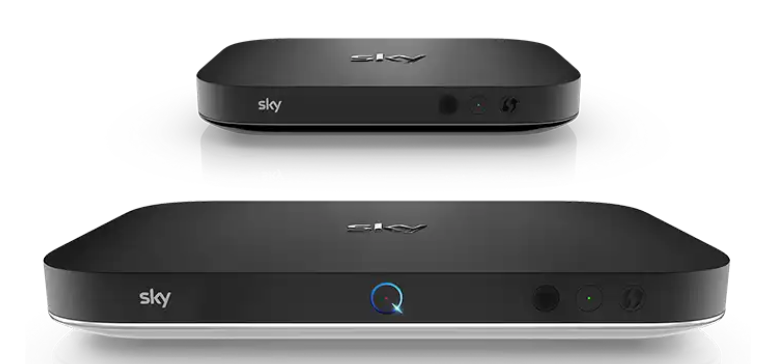
Sky Q is not just a satellite receiver. It’s effectively a hybrid TV system + internal mesh network + multi-interface bridge
A typical setup includes:
- Main Sky Q box (satellite receiver + recorder)
- Sky Q Mini boxes (multi-room clients)
- Built-in Wi-Fi mesh networking
- Wired Ethernet connectivity
The key point
Sky Q boxes don’t just use your network — they actively participate in and extend it.
Different Hardware in Main and Mini Boxes
One of the most important discoveries is that the main box and mini boxes use completely different networking hardware.
Sky Q Mini Box
- Chipset: Atheros AR7420-AL3C
- Type: Layer-2 bridge / powerline networking chipset
This chip is designed for:
- Powerline adapters
- Hybrid Ethernet bridging
- Multi-interface forwarding
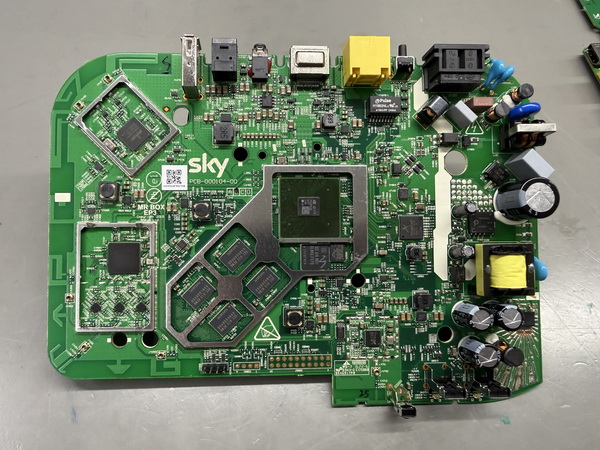
In practice: it behaves more like a small network switch/bridge than a normal Ethernet device.
Main Sky Q Box
- Chipset: Broadcom TN1921 (P21 / 7278APKFSBA00B1T)
- Type: System-on-Chip with integrated networking
This is a more conventional embedded platform:
- Handles TV, decoding, apps, and networking
- Behaves closer to a normal client device
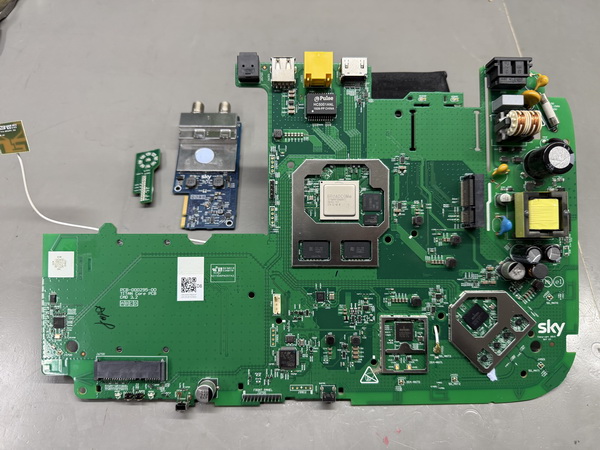
Real-world behaviour: it still suffers connection drops, but far less frequently than Mini boxes.
Why This Difference Matters
At first, you might assume:
But that’s only partly true.
Reality
- Mini boxes are more unstable (AR7420)
- Main box is more stable but still affected
The entire Sky Q system is designed as a single mesh/bridge network.
Even the main box maintains Wi-Fi capability, participates in mesh coordination, and uses internal bridging logic.
Why Sky Q Causes Network Problems
The root issue is not just software bugs or a poor TCP stack.
What’s Happening Under the Hood
Instead of a normal network path:
App → TCP/IP → NIC → Router
Sky Q behaves more like:
App → TCP/IP → internal bridge → Ethernet / Wi-Fi / Mesh
That internal bridge, especially in Mini boxes, can:
- Switch traffic paths dynamically
- Delay or drop frames
- Reconfigure interfaces without warning
Common Problems
No internet connection
- Box reports internet down (Main box and Mini box individually)
- Everything else in the house works fine
- Main box and Mini box after resetting the internet grab the same IP address (then fails again)
Ethernet/Internet dropouts
- Wired connection randomly stops working
- Resetting Ethernet restores it
Streaming instability
- Apps fail
- On-demand stops
- Buffering or disconnects
Network disruption
- Broadcast storms
- ARP instability
- Switches detecting loops
What’s Actually Going Wrong
1. Layer-2 instability
The AR7420 in Mini boxes introduces:
- Aggressive bridging behaviour
- Broadcast/multicast forwarding
- Poor isolation between interfaces
This destabilises the local network.
2. ARP and MAC confusion
Because of internal bridging:
- MAC addresses can appear to move
- ARP tables become invalid
The router temporarily “loses” the box, and the connection appears down.
3. Interface switching, even on Ethernet
Even when wired:
- Wi-Fi often remains active
- The system may switch paths internally
This causes packet loss, session drops, and short outages.
4. DNS fragility
Sky Q only allows one DNS server, which suggests a simplified network stack.
If DNS fails briefly, the box reports “No internet” even when the network is actually fine.
Why the Main Box Is Less Bad
The Broadcom-based main box:
- Has a more conventional networking implementation
- Doesn’t rely on AR7420-style bridging
So it tends to have fewer drops and more stable Ethernet.
But: it still participates in the same overall system architecture, so it can still experience occasional dropouts, especially when Mini boxes are active.
How Mini Boxes Make Everything Worse
When Mini boxes are present, the AR7420-based devices:
- Inject broadcast traffic
- Extend the mesh
- Participate in bridging
This increases network complexity, instability, and the frequency of dropouts.
Why “Resetting Ethernet/Internet” Works
When you reset the Ethernet/Internet:
- ARP tables refresh
- DHCP renews
- Internal bridge resets
You’re not fixing the root cause — you’re forcing the network back into a stable state.
The Real Conclusion
Sky Q’s networking issues come from its fundamental design.
- The AR7420 in Mini boxes makes instability worse
- The Broadcom main box is better, but still part of the system
- The whole setup behaves like a network inside your network
How to Make Sky Q Stable (What Actually Works)
After understanding how Sky Q behaves internally, the fixes start to make sense.
The Strategy
- Reduce layer-2 noise (broadcasts, ARP issues)
- Prevent interface switching (Wi-Fi ↔ Ethernet)
- Isolate Sky Q from the rest of your network
1. Use Ethernet only, if possible
This is the single biggest improvement.
What to do
- Connect main box via Ethernet
- Connect Mini boxes via Ethernet where practical
- Disable Wi-Fi
Why it works:
- Removes mesh complexity
- Stops interface switching
- Eliminates AR7420 wireless bridging behaviour
Important: if you cannot disable Wi-Fi, do not mix Ethernet and Wi-Fi on the same box. Pick one approach and stick to it.
2. Isolate Sky Q from your main LAN
This is hugely effective, especially on pfSense or managed networks.
Simple method
- Put Sky Q on a cheap unmanaged switch
- Uplink that switch to your router
Better method
- Put Sky Q devices on a separate VLAN
Why this works:
- Contains broadcast traffic
- Prevents AR7420 affecting other devices
- Stops network-wide slowdowns
3. Keep DHCP and ARP stable
- Use DHCP reservations for all Sky Q boxes
- Avoid changing IPs
- Optionally use static ARP entries if your router supports them
4. Avoid “clever” switch features, sometimes
Managed switches can actually make things worse.
- STP (Spanning Tree)
- Loop detection
- Broadcast suppression
These can react badly to Sky Q’s behaviour.
5. Minimise Mini box impact
The Mini boxes are the biggest troublemakers.
- Wire them via Ethernet where possible
- Reduce how many are active while troubleshooting
6. Accept the DNS limitation
Sky Q only supports one DNS server.
- Use your router, for example pfSense, as DNS
- Let it handle redundancy upstream
7. The “Reset Fix”
Yes, unplugging Ethernet works.
It forces ARP refresh, resets the internal bridge, and re-establishes DHCP — but it is a temporary stabilisation, not a true fix.
However, sometimes the Mini box and Main box can grab the same IP address from the router, which results in repeated immediate internet failure.
A Known Good Setup
- Main Sky Q → Ethernet → unmanaged switch
- Mini boxes → Ethernet → same switch
- Switch → router (single uplink)
- Wi-Fi disabled on Sky Q
Or place all Sky Q devices on a dedicated VLAN/interface.
Why Sky Designed It This Way (and Why It Backfires)
At this point, it’s easy to ask why Sky designed it like this. The answer is that, from Sky’s perspective, the design actually makes sense.
Sky Q was built to solve one very specific problem:
Most homes:
- Don’t have structured cabling
- Have poor Wi-Fi coverage
- Want plug-and-play simplicity
So Sky built a system that could:
- Stream video between rooms
- Automatically connect devices
- Self-configure networking
- Work out of the box
The Design Choice
To achieve that, Sky built a self-managed mesh network inside the TV system.
- Boxes talk directly to each other
- They form their own wireless network
- They can route traffic between themselves
They do not rely entirely on your home network.
Why the AR7420 Fits This Model
The Atheros AR7420 is well suited to this type of design because it is built for bridging multiple interfaces, handling noisy links such as powerline and Wi-Fi, and dynamically forwarding traffic.
Where It Goes Wrong
Conflict of control
Your network expects devices to be simple clients with one clear path to the router. Sky Q expects to manage its own connectivity and bridge internally. The result is two systems trying to control layer-2 behaviour.
Assumptions don’t match reality
Sky largely assumes a flat home network, a basic router, and no VLANs or advanced switching. Many home networks now have pfSense, managed switches, VLAN segmentation, and multiple access points.
Hidden complexity
To the user, Sky Q looks simple. Underneath, it is a mesh network, a bridge, a streaming platform, and a client device all at once.
Why It Backfires in Practice
The very features that make Sky Q easy to install — auto networking, mesh behaviour, and interface switching — are the same features that cause dropouts, instability, and “no internet” errors.
Designed for the Average Home
To be fair, in a simple setup it often works well enough: ISP router, no VLANs, few devices, default settings.
But in a Proper Network
Once you introduce structured Ethernet, multiple access points, managed switches, or firewalls like pfSense, the cracks show quickly.
The Final Reality
Final Thought
Sky Q works best when it is allowed to be the network.
It works worst when it has to behave like a normal device on yours.
What Could Sky Do to Fix This?
At this point, the causes are fairly clear. The more interesting question is what Sky would actually need to change for Sky Q to behave properly on a modern network.
The core problem is simple: Sky Q is trying to do two conflicting jobs at once.
- Act as a normal client device on your network
- Act as an internal network controller and bridge
The real fix would be to let the user decide which role it should perform.
1. Add a True Ethernet Client Mode
This would be the single biggest improvement.
- Disable internal bridging
- Disable mesh networking
- Disable Wi-Fi completely
- Use Ethernet as the only active interface
In that mode, Sky Q would behave like a normal smart TV or streaming box instead of a self-managed network device.
2. Fully Disable Wi-Fi When Ethernet Is Connected
At the moment, Wi-Fi often appears to remain active even when Ethernet is plugged in.
That alone would reduce path switching, packet loss, and many of the mysterious dropouts people see.
3. Remove Internal Layer-2 Bridging in Client Mode
The Mini box behaviour in particular suggests far too much bridging is happening internally.
In a proper client mode, Sky should stop bridging Ethernet, Wi-Fi, and mesh traffic together unless that behaviour is explicitly required.
This would greatly reduce:
- ARP instability
- MAC flapping
- Broadcast storms
- General network confusion
4. Provide Proper Network Settings
The current advanced settings are far too limited for a device that behaves this way on a network.
At minimum, Sky should allow:
- More than one DNS server
- Clear indication of which interface is active
- Better reporting of link and internet status
Even basic improvements here would prevent many false “no internet” messages.
5. Add Useful Diagnostics
At present, troubleshooting is mostly guesswork. The box should expose a little more information.
- Can it reach the gateway?
- Is DNS working?
- Is packet loss occurring?
- Which interface is actually carrying traffic?
Instead of simply saying:
It could report something more meaningful, such as:
6. Stop Auto-Switching Between Interfaces
Automatic switching between Ethernet and Wi-Fi is one of the biggest sources of instability.
Sky Q should lock to the selected interface and only fail over if the user explicitly wants that behaviour.
The Reality
None of these fixes are especially exotic. Most of them are firmware and design choices rather than major hardware limitations.
The reason they probably do not exist is straightforward:
- Sky designs for the average non-technical household
- Simplicity is prioritised over control
- Extra settings increase support complexity
Final Thought
The sad thing is, SKY have known about this problem for years and my own experience seems to indicate that they have either not tried hard enough or have not been able to work around the problem of the current design via the firmware.
Actually, I have told them, and they promised to pass on the details to their design team, that better on-screen diagnostics are a must! It would save them a lot of support hours.
Saying that however, if they added just one option — disable mesh and use Ethernet only — it would probably solve the majority of real-world problems overnight.
